Saturday, October 6, 2018

Microsoft pulls Windows 10 October 2018 Update after reports of documents being deleted


Microsoft has stopped distributing its latest Windows 10 October 2018 Update. The software giant started rolling out the update during the company’s Surface event earlier this week, but some Windows 10 users immediately noticed their documents were being deleted. 

 “We have paused the rollout of the Windows 10 October 2018 Update (version 1809) for all users as we investigate isolated reports of users missing some files after updating,” says Microsoft on its support site for Windows Update. 

Microsoft is now recommending that affected users contact the company directly, and if you’ve manually downloaded the October update then “please don’t install it and wait until new media is available.” Other Windows 10 users have been complaining that the Microsoft Edge browser and other store apps have been unable to connect to the internet after the October 2018 Update, and the update was even blocked on certain PCs due to Intel driver incompatibilities.

It’s not clear how many Windows 10 users are affected by the problem, but even if it’s a small percentage it’s still surprising this issue was never picked up during Microsoft’s vast testing of the October update. Millions of people help Microsoft test Windows 10, but the company has struggled with the quality of Windows updates recently.

 Microsoft delayed its Windows 10 April 2018 Update earlier this year over Blue Screen of Death issues, but those problems were picked up before the update reached regular consumers and businesses.
Microsoft was planning to push the latest October update out to all Windows 10 users next Tuesday, but that’s now likely to be put on hold while investigations continue into this major deletion problem.
Update, October 6th 6:50AM ET: Article updated with additional details on the October 2018 Update issues.

Sunday, September 16, 2018

Flexbox in CSS (Beginner Guide to Mobile Development)


Let’s face it, time and again when we start a new web project, we always prefer starting with a lightweight framework to get a headstart and make our work easier. Sure there is a little compromise on having an extra bit of unnecessary code but we are fine with it as we don’t have to go through the painstaking process of making a layout using blocks, inline, tables, etc. Well, guess what! CSS has added a new layout mode which would minimize, if not entirely eradicate, the use of frameworks for many projects. This layout mode is called Flexbox, short for Flexible boxes. This tutorial will give you a short guide to understand the basics of flexbox and how you can add them to your project and reduce the hassle and headache of positioning different elements in the layout.
TL;DR-In this article, we will be covering-
1. Flexbox Terminologies and basics.
2. Properties of flex containers.
3. Properties of flex items.
Flexbox Basics-
Most of the terms are self-explanatory while others are best described through examples. I’ll try to define the complicated ones. Also, I would like to add that I have used examples/images from sources like w3schools, css-tricks etc. as they have made images which are clear and easy to understand and would help beginners grasp concepts easily. Let’s get on with it, shall we?
Container and Items
Flexbox contains containers which have items inside it. By defining the container’s display as flex, we can start using the flexbox model inside it. Let’s take an example to understand how it looks, visually.


Source: w3schools

As we can see, the in the image above, the blue area is the container having eight elements inside it called items. Time to have a look at a sample code now-
<div class=”flex-container”>
    <div> a </div>
    <div> b </div>
    <div> c </div>
</div>

Now define the class flex-container like so-
.flex-container{
   display: flex;
}
As you can see above, since we have defined the property of flex on flex-container, the child divs inside it becomes the items of the container.
Properties of Containers-

display
It defines whether the elements inside the flex layout should be a block or inline.
.flex-container{
   display: flex /* or inline-flex */
}

flex-direction
Yes, we can also control the directions by which our elements can be arranged and in which order. Possible values are row, column, row-reverse, column-reverse.
.flex-container{
     display:flex;
     flex-direction: row | row-reverse
}

flex-wrap
This is an interesting property which would solve many problems related to responsiveness. the values are wrap, nowrap(default) and wrap-reverse(reversing the order of elements once wrapped). So basically it means that if it is wrapped, then the items, which are outside of the browser’s view will come directly below it. Cool right?
.flex-container{
      display:flex;
      flex-wrap: wrap;
}

flex-flow
It is a shorthand for flex-direction and flex-wrap properties. Example usage-
.flex-container {
      display: flex;
      flex-flow: row wrap;
}

justify-content
Okay for this I would like to show you visually how it would look for different values of containers having three child elements.


Source: CSS-Tricks

.flex-container{
     display:flex;
     justify-content:center;
}

Wait, will the above solve the centering problem? Yes! if you want an element to center horizontally, just a center value will do the job if you have defined it as a flex container.

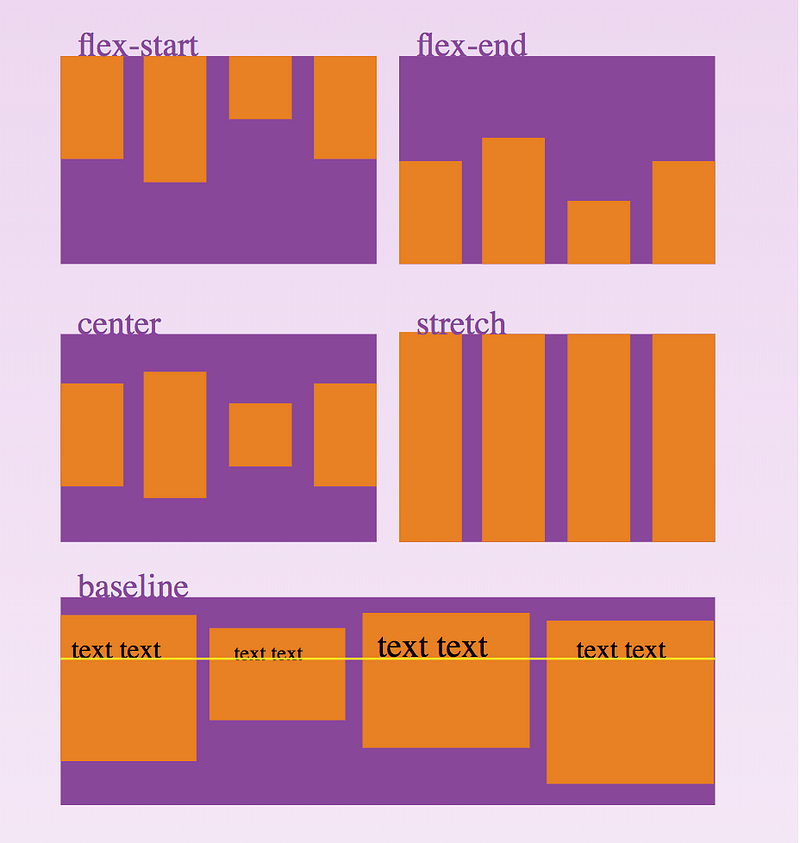
align-items
Suppose you have a container covering the whole of browser’s height while the elements are of different sizes. now you have learned how to evenly space them out horizontally. Now you would want them to evenly space out vertically. align-items is your savior! Again, I chose to show a visual of the workings of its different values.


Source: CSS-Tricks

.flex-container{
     display:flex;
     align-items:center;
}

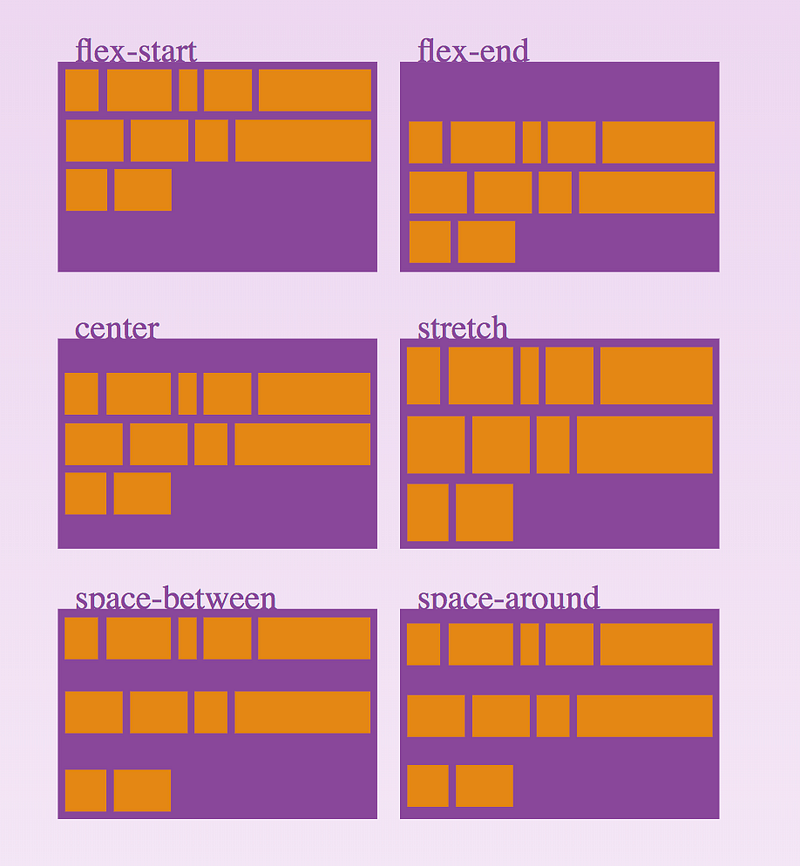
align-content
Let us extend the above example for more elements with the flex-wrap property set to wrap. The elements may be of three to four rows but not necessarily cover the whole browser. In this case, we have different options for positioning them with flexbox’s align-content property. Let’s have a look at the image below-


Source: CSS-Tricks

.flex-container{
     display: flex;
     align-content: center;
}


Properties of Items-

order
It determines the order in which the flex-items are laid out. By default, it follows the source order (i.e. the value is 0).
<div class="flex-container">
  <div style="order: 3">1</div>
  <div style="order: 2">2</div>
  <div style="order: 4">3</div> 
  <div style="order: 1">4</div>
</div>
The above code places the elements in the following order-


Source: w3schools

flex-grow
The flex-grow property specifies how much a flex item will grow relative to the rest of the flex items.
If all items have flex-grow set to 1, the remaining space in the container will be distributed equally to all flex-items. If one of the item has a value of 2, the remaining space would take up twice as much space as the others (or it will try to, at least).
<div class="flex-container">
  <div style="flex-grow: 1">1</div>
  <div style="flex-grow: 2">2</div>
  <div style="flex-grow: 1">1</div></div>

As we can see below, the middle element twice as much space as the first and the third element.


Source: CSS-Tricks

flex-shrinkThis property defines how much a flex-items will shrink relative to the rest of the flex-items. The default value is 1. A value of 0 means that it will retain its original size relative to other flex items.
In the below code let us assume that every div in the container has a width of 100px and a margin of 10px all in one line. Obviously, for a small browser width, it would shrink to fit. Let us apply a flex-shrink of 0 to the third element so that it retains its original size.
<div class="flex-container">
  <div>1</div>
  <div>2</div>
  <div style="flex-shrink: 0">3</div>
  <div>4</div>
  <div>5</div>
  <div>6</div>
  <div>7</div>
  <div>8</div>
  <div>9</div>
  <div>10</div>
</div>
We can see that the third element has retained its original size relative to other flex items.


Source: w3schools

flex-basis
This defines the default size of an element before the remaining space is distributed. It can take values in pixels, percentage etc. The default value is auto, which takes the size according to the width and height properties. In the example code below, we set the default size of the third element to be 200px.
<div class="flex-container">
  <div>1</div>
  <div>2</div>
  <div style="flex-basis: 200px">3</div>
  <div>4</div>
</div>


Source: w3schools

flex
This is the shorthand for flex-grow, flex-shrink and flex-basis combined. The second and third parameters (flex-shrinkand flex-basis) are optional. Default is 0 1 auto. Example usage-
<div class="flex-container">
  <div>1</div>
  <div>2</div>
  <div style="flex: 0 0 200px">3</div>
  <div>4</div>
</div>

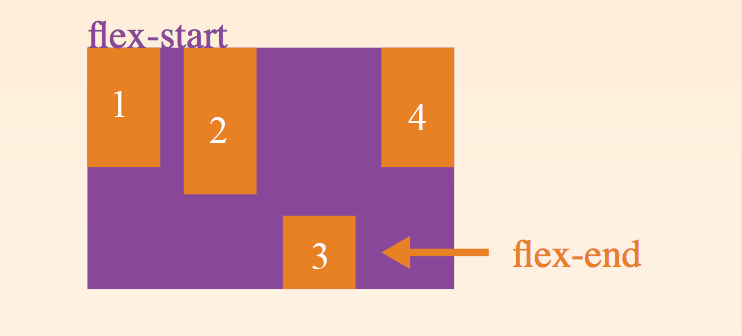
align-self
The align-self property specifies the alignment for the selected item inside the flexible container. The align-self property overrides the default alignment set by the container's align-items property. Its possible values are same as those of the align-items property. The code below shows how we can override the flex-start property of the third element by applying a flex-end on it.
<div class="flex-container">
  <div>1</div>
  <div>2</div>
  <div style="align-self: flex-end">3</div>
  <div>4</div>
</div>


Source: CSS-Tricks

There you go! All the ingredients for a perfect flexbox recipe laid out for your taking. Time to say bye to bootstrap and say hello to the flexbox layout!

Thursday, September 13, 2018

ReactJS vs Angular5 vs Vue.js — What to choose in 2018?

ReactJS vs Angular5 vs Vue.js — What to choose in 2018?


JavaScript frameworks are developing at an extremely fast pace, meaning that today we have frequently updated versions of Angular, ReactJS and another player on this market — Vue.js.
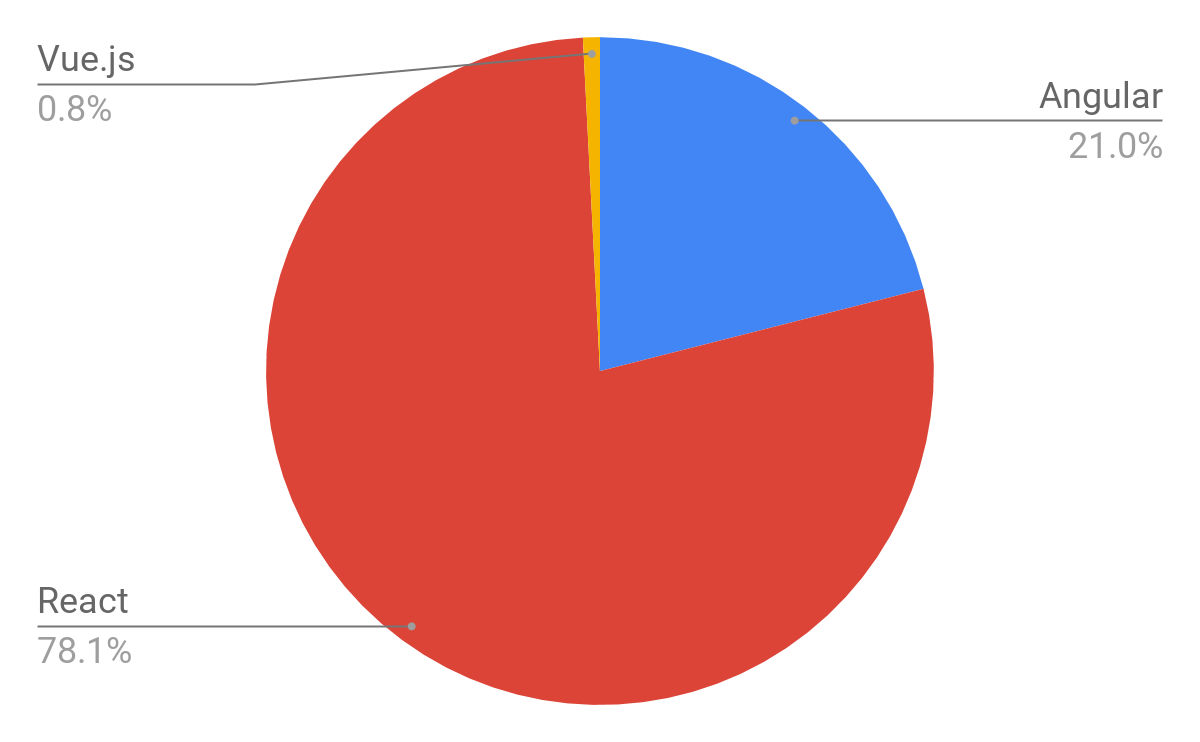
We analyzed the number of open positions worldwide that require a specific knowledge of a certain framework. As a source, we took Indeed.com and got the following distribution according to more than 60,000 job offers.
Taking into account the following data, we decided to share the main advantages and disadvantages of every frontend framework and help tech professionals or engineers to choose the best one for their development needs.

Pros and cons of Angular 5

Angular is superheroic JavaScript MVVM framework, founded in 2009, which is awesome for building highly interactive web applications.
Benefits of Angular 5:
  • New features like enhanced RXJS, faster compilation (in under 3 seconds), new HttpClient launch.
  • Detailed documentation that allows getting all necessary information for the individual developer without asking his colleagues. However, this requires more time for education.
  • Two-way data binding that enables singular behavior for the app which minimized risks of possible errors.
  • MVVM (Model-View-ViewModel) that allows developers to work separately on the same app section using the same set of data.
  • Dependency injection of the features related to the components with modules and modularity in general.
Drawbacks of Angular 5:
  • The complex syntax that comes from the first version of Angular. Nevertheless, Angular 5 uses TypeScript 2.4 which is the least difficult to learn in comparison.
  • Migration issues which can appear while moving from the older version to the latest ones.
Companies that use Angular 5: Upwork, Freelancer, Udemy, YouTube, Paypal, Nike, Google, Telegram, Weather, iStockphoto, AWS, Crunchbase.

Pros and cons of ReactJS

ReactJS is a JavaScript library, open sourced by Facebook in 2013, which is great for building huge web applications where data is changeable on a regular basis.
Benefits of ReactJS:
  • Easy to learn. React is much easier to learn because of its simplicity in terms of syntax. Engineers just need to recall their HTML writing skills and that’s it. No need to deeply learn TypeScript like in Angular.
  • High level of flexibility and maximum of responsiveness.
  • Virtual DOM (document object model) that allows arranging documents in HTML, XHTML, or XML formats into a tree from which is better acceptable by web browsers while parsing different elements of the web app.
  • Combined with ES6/7, ReactJS can work with the high load in an easy way.
  • Downward data binding which means that with this kind of data flow the child elements cannot affect parent data.
  • 100% open source JavaScript library which get a lot of everyday updates and improvements according to the contributions of developers all over the world.
  • Absolutely light-weighted because the data performing on the user side can be easily represented on the server side simultaneously.
  • Migrating between versions is generally very easy, with Facebook providing “codemods” to automate much of the process.
Drawbacks of ReactJS:
  • Lack of official documentation — super-fast development of ReactJS leaves no place for the proper documentation which is a bit chaotic now as many developers contribute it individually without any systematic approach;
  • React is unopinionated — meaning that developers sometimes have too much choice;
  • Long time to master which means that React JS requires deep knowledge of how to integrate user interface into MVC framework.
Companies that use ReactJS: Facebook, Instagram, Netflix, New York Times, Yahoo, Khan Academy, Whatsapp, Codecademy, Dropbox, Airbnb, Asana, Atlassian, Intercom, Microsoft.

Pros and cons of Vue.js

Vue.js is a JavaScript framework, launched in 2013, which perfectly fits for creating highly adaptable user interfaces and sophisticated Single-page applications.
Benefits of Vue.js:
  • Empowered HTML. This means that Vue.js has many similar characteristics with Angular and this can help to optimize HTML blocks handling with a usage of different components.
  • Detailed documentation. Vue.js has very circumstantial documentation which can fasten learning curve for developers and save a lot of time to develop an app using only the basic knowledge of HTML and JavaScript.
  • Adaptability. It provides a rapid switching period from other frameworks to Vue.js because of the similarity with Angular and React in terms of design and architecture.
  • Awesome integration. Vue.js can be used for both building single-page applications and more difficult web interfaces of apps. The main thing is that smaller interactive parts can be easily integrated into the existing infrastructure with no negative effect on the entire system.
  • Large scaling. Vue.js can help to develop pretty large reusable templates that can be made with no extra time allocated for that according to its simple structure.
  • Tiny size. Vue.js can weight around 20KB keeping its speed and flexibility that allows reaching much better performance in comparison to other frameworks.
Drawbacks of Vue.js:
  • Lack of resources. Vue.js still has a pretty small market share in comparison with React or Angular, which means that knowledge sharing in this framework is still in the beginning phase.
  • Risk of over flexibility. Sometimes, Vue.js might have issues while integrating into huge projects and there is still no experience with possible solutions, but they will definitely come soon.
  • Lack of full English documentation. This leads to a partial complexity on some stages of development, nevertheless, more and more materials are being translated into English.
Companies that use Vue.js: Xiaomi, Alibaba, WizzAir, EuroNews, Grammarly, Gitlab and Laracasts, Adobe, Behance, Codeship, Reuters.

CONCLUSION

For a real engineer, there is no substantial difference which framework to choose, because it just takes some time to get used to the new one. In our company, we grow expertise in mostly ReactJS and Angular 2/4/5, but Vue.js is also on board. Every framework has its own pros and cons, meaning that there should be just a right choice for every single case during the product development.


Sunday, September 2, 2018

Web Development Tools and Resources for 2018

The best and worst thing about being a web developer is that the web is constantly changing. While this is exciting it also means that web developers must always be proactive in learning new techniques or programming languages, adapting to changes, and be willing and eager to accept new challenges. This could include tasks such as adapting existing frameworks to meet business requirements, testing a website to identify technical problems, or optimizing and scaling a site to better perform with the back-end infrastructure.  We thought we would compile a comprehensive list of web development tools and resources that can help you be more productive, stay informed, and become a better developer.


Web Development Tools and Resources for 2018

A lot of these web development tools below are ones we use at KeyCDN on a daily basis. We can’t include everything, but here are a couple of our favorites and other widely used ones. Hopefully, you find a new tool or resource that will aid you in your development workflow. Note: The tools and resources below are listed in no particular order.

JavaScript Libraries

javascript libraries
Javascript is one of the most popular programming languages on the web. A Javascript library is a library of pre-written Javascript which allows easier access throughout the development of your website or application. For example, you can include a copy of Google’s hosted jQuery library by using the following snippet.
<script src="https://ajax.googleapis.com/ajax/libs/jquery/2.2.0/jquery.min.js"></script>
  • jQuery: A fast, small, and feature-rich JavaScript library.
  • BackBoneJS: Give your JS app some backbone with models, views, collections, & events.
  • D3.js: A JavaScript library for manipulating documents based on data.
  • React: Facebook’s Javascript library developed for building user interfaces.
  • jQuery UI: A curated set of user interface interactions, effects, widgets, and themes.
  • jQuery Mobile: HTML5-based user interface system designed to make responsive web sites.
  • Underscore.js: Functional programming helpers without extending any built-in objects.
  • Moment.js: Parse, validate, manipulate, and display dates in JavaScript.
  • Lodash: A modern utility library delivering modularity, performance, & extras.
  • Vue.js – An open source JavaScript framework used for building user interfaces.

Front-end Frameworks

web development tools - front-end frameworks
Front-end frameworks usually consist of a package that is made up of other files and folders, such as HTML, CSS, JavasScript, etc. There are also many stand-alone frameworks out there. We are a big fan of Boostrap and the main KeyCDN website is built on it. A solid framework can be an essential tool for front-end developers.
  • Bootstrap: HTML, CSS, and JS framework for developing responsive, mobile first projects on the web.
  • Foundation: Family of responsive front-end frameworks that make it easy to design beautiful responsive websites, apps and emails that look amazing on any device.
  • Semantic UI: Development framework that helps create beautiful, responsive layouts using human-friendly HTML.
  • uikit: A lightweight and modular front-end framework for developing fast and powerful web interfaces.
To learn more about the differences between popular front-end framework, check out our list of the top front-end frameworks of 2018.

Web Application Frameworks

web application frameworks
A web application framework is a software framework designed to aid and alleviate some of the headache involved in the development of web applications and services.
  • Ruby: Ruby on Rails is a web-application framework that includes everything needed to create database-backed web applications, with the MVC pattern.
  • AngularJS: Lets you extend HTML vocabulary for your web application. AngularJS is a framework, even though it’s much more lightweight and sometimes referred to as a library.
  • Ember.js: A framework for creating ambitious web applications.
  • Express: Fast and minimalist web framework for Node.js.
  • Meteor: Full-stack JavaScript app platform that assembles all the pieces you need to build modern web and mobile apps, with a single JavaScript codebase.
  • Django: High-level Python Web framework that encourages rapid development and clean, pragmatic design.
  • ASP.net: Free, fully supported Web application framework that helps you create standards-based Web solutions.
  • Laravel: A free, open-source PHP web application framework to build web applications on MVC pattern.
  • Zend Framework 2: An open source framework for developing web applications and services using PHP.
  • Phalcon: A full-stack PHP framework delivered as a C-extension.
  • Symfony: A set of reusable PHP components and a web application framework.
  • CakePHP: A popular PHP framework that makes building web applications simpler, faster and require less code.
  • Flask: A microframework for Python based on Werkzeug and Jinja 2.
  • CodeIgniter: Powerful and lightweight PHP framework built for developers who need a simple and elegant toolkit to create full-featured web applications.
Also, make sure to check out KeyCDN’s framework integration guides to see how you can implement a CDN with the solutions mentioned above.

Task Runners / Package Managers

build systems task runners
Tasks runners are all about automating your workflow. For example, you can create a task and automate the minification of JavaScript. Then build and combine tasks to speed up development time. Package managers keep track of all the packages you use and make sure they are up to date and the specific version that you need.
  • Grunt: JavaScript task runner all about automation.
  • Gulp: Keeps things simple and makes complex tasks manageable, while automating and enhancing your workflow.
  • npm: Pack manager for JavaScript.
  • Bower: A web package manager. Manage components that contain HTML, CSS, JavaScript, fonts or even image files.
  • Webpack: A module bundler for modern JavaScript applications.

Languages / Platforms

programming languages
Behind all the web development tools is a language. A programming language is a formal constructed language designed to communicate with a computer and create programs in which you can control the behavior. And yes we realize some of these might not always be referred to as a language.
  • PHP: Popular general-purpose scripting language that is especially suited to web development.
  • NodeJS: Event-driven I/O server-side JavaScript environment based on V8.
  • Javascript: Programming language of HTML and the web.
  • HTML5: Markup language, the latest version of HTML and XHTML.
  • Python: Programming language that lets you work quickly and integrate systems more effectively.
  • Ruby: A dynamic, open source programming language with a focus on simplicity and productivity.
  • Scala: Scala is a pure-bred object-oriented language allowing a gradual, easy migration to a more functional style.
  • CSS3: Latest version of cascading style sheets used in front-end development of sites and applications.
  • SQL: Stands for structured query language used with relational databases.
  • Golang: Open source programming language that makes it easy to build simple, reliable, and efficient software.
  • Rust: Systems programming language that runs blazingly fast, prevents segfaults, and guarantees thread safety.
  • Elixir: Dynamic, functional language designed for building scalable and maintainable applications.
  • TypeScript: Open source programming language that is a superset of JavaScript which compiles to plain JavaScript.

Databases

databases
A database is a collection of information that is stored so that it can be retrieved, managed and updated.
  • MySQL: One of the world’s most popular open source databases.
  • MariaDB: Made by the original developers of MySQL. MariaDB is also becoming very popular as an open source database server.
  • MongoDB: Next-generation database that lets you create applications never before possible.
  • Redis: An open source, in-memory data structure store, used as a database, cache and message broker.
  • PostgreSQL: A powerful, open source object-relational database system.

CSS Preprocessors

web development tools - css preprocessors
A CSS preprocessor is basically a scripting language that extends CSS and then compiles it into regular CSS. Make sure to also check out or in-depth post on Sass vs Less.
  • Sass: A very mature, stable, and powerful professional grade CSS extension.
  • Less: As an extension to CSS that is also backward compatible with CSS. This makes learning Less a breeze, and if in doubt, lets you fall back to vanilla CSS.
  • Stylus: A new language, providing an efficient, dynamic, and expressive way to generate CSS. Supporting both an indented syntax and regular CSS style.
If you are just getting started with a CSS preprocessor you might want to make the transition easier by first using a 3rd party compiler, such as the ones below.
Compiler Sass Language Less Language Mac Windows
CodeKit
Koala
Hammer

LiveReload
Prepros
Scout
Crunch

Text Editors / Code Editors

text editors code editors
Whether you’re taking notes, coding, or writing markdown, a good text editor is a part of our daily lives!
  • Atom: A text editor that’s modern, approachable, yet hackable to the core. One of our favorites!
  • Sublime Text: A sophisticated text editor for code, markup, and prose with great performance.
  • Notepad++: A free source code editor which supports several programming languages running under the MS Windows environment.
  • Visual Studio Code: Code editing redefined and optimized for building and debugging modern web and cloud applications.
  • TextMate: A code and markup editor for OS X.
  • Coda 2: A fast, clean, and powerful text editor for OS X.
  • WebStorm: Lightweight yet powerful IDE, perfectly equipped for complex client-side development and server-side development with Node.js.
  • Vim: A highly configurable text editor built to enable efficient text editing.
  • Brackets: A lightweight and powerful modern text editor; written in JavaScript, HTML and CSS.
  • Emacs: An extensible, customizable text editor with built-in functions to aid in quick modifications of text and code.
  • Dreamweaver: Not your typical code editor, however, Dreamweaver can be used to write code and build websites through a visual interface. Learn more in this simple Dreamweaver tutorial.
  • SpaceMacs: A text editor design to operate in both Emacs and Vim editor modes.

Markdown Editors

markdown editors
Markdown is a markup language in plain text using an easy syntax that can then be converted to HTML on the fly. Note: This is different than a WYSIWYG editor. Markdown editors are sometimes referred to as the in-between WYSIWYG and simply writing code.
  • StackEdit: A free online rich markdown editor.
  • Dillinger: An online cloud-enabled, HTML5, buzzword-filled Markdown editor.
  • Mou: Markdown editor for developers on Mac OS X.
  • Texts: A rich editor for plain text. Windows and Mac OS X.
Some of the text editors we mentioned above also support markdown. For example, there is a markdown preview package for atom.

Icons

icons
Almost every web developer, especially front-end developers will at some point or another need icons for their project. Below are some great resources for both free and paid high-quality icons.
  • Font Awesome: Scalable vector icons that can instantly be customized — size, color, drop shadow, and anything that can be done with the power of CSS.
  • IconMonster: A free, high quality, monstrously big and continuously growing source of simple icons. One of our favorites!
  • Icons8: An extensive list of highly customizable icons created by a single design team.
  • IconFinder: Iconfinder provides beautiful icons to millions of designers and developers.
  • Fontello: Tool to build custom fonts with icons.
  • Noun Project: Over a million curated icons. Available in both free as well as paid versions for greater customizability.
For more great icon providers, check out our complete list of 16 popular icon library resources.

Git Clients / Services

git clients
Git is a source code management system for software and web development known for distributed revision control. When working with teams, using a git client to push code changes from dev to production is a way to maintain the chaos and ensure things are tested so they don’t break your live web application or site.
  • SourceTree: A free Git & Mercurial client for Windows or Mac. Atlassian also makes a pretty cool team Git client called Bitbucket.
  • GitKraken (Beta):  A free, intuitive, fast, and beautiful cross-platform Git client.
  • Tower 2: Version control with Git – made easy. In a beautiful, efficient, and powerful app.
  • GitHub Client: A seamless way to contribute to projects on GitHub and GitHub Enterprise.
  • Gogs: A painless self-hosted Git service based on the Go language.
  • GitLab: Host your private and public software projects for free.

Web Servers

web servers
The web server you ultimately end up using will usually depend on a combination of personal preference, functionality, or preexisting infrastructure. Nginx and Apache are the two most widely used web servers around, however, there are other options.
  • Nginx: An open source and high-performant web server. Handles static content well and is lightweight.
  • Apache: Currently powers almost 50% of all websites. Has a larger community around it and a great selection of modules.
  • IIS: An extensible web server created by Microsoft. Offers excellent security and corporate support, therefore is not open source.
  • Caddy: A relatively new web server. It is an open source, HTTP/2 web server with automatic HTTPS.
For a complete comparison of today’s biggest web servers, check out our Nginx vs Apache article.

API Tools

api tools
Web developers typically deal with APIs on a daily basis. They are essential in today’s web development environment, however, can sometimes be difficult to deal with in terms of monitoring, creating, or combining. Thankfully, there are a variety of tools available to make working with APIs much more efficient.
  • Runscope: An API performance testing, monitoring, and debugging solution.
  • Zapier: Connect the APIs of various apps and services in order to automate workflows and enable automation.
  • Postman: Complete API development environment. Everything from designing, testing, monitoring, and publishing.
  • SoapUI: Advanced REST and SOAP testing tool. Ability to perform functional testing, security testing, performance testing, etc.

Local Dev Environments

local dev environment
Depending upon what OS you are running or the computer you currently have access to, it might be necessary to launch a quick local dev environment. There are a lot of free utilities that bundle Apache, mySQL, phpmyAdmin, etc. all together. This can be a quick way to test something on your local machine. A lot of them even have portable versions.
  • XAMPP: Completely free, easy to install Apache distribution containing MariaDB, PHP, and Perl.
  • MAMP: Local server environment in a matter of seconds on OS X or Windows.
  • WampServer: Windows web development environment. It allows you to create web applications with Apache2, PHP and a MySQL database.
  • Vagrant: Create and configure lightweight, reproducible, and portable development environments.
  • Laragon: A great fast and easy way to create an isolated dev environment on Windows. Includes Mysql, PHP Memcached, Redis, Apache, and awesome for working with your Laravel projects.

Diff Checkers

diff checkers
Diff checkers can help you compare differences between files and then merge the changes. A lot of this can be done from CLI, but sometimes it can be helpful to see a more visual representation.
  • Diffchecker: Online diff tool to compare text differences between two text files. Great if you are on the go and quickly need to compare something.
  • Beyond Compare: A program to compare files and folders using simple, powerful commands that focus on the differences you’re interested in and ignore those you’re not.
A lot of the free text editors we mentioned above also have plugins or extensions which allow you to diff or compare your files.

Code Sharing / Experimenting

code sharing
There is always that time when you are on Skype or Google hangout with another developer and you want him or her to take a quick look at your code. There are great team tools for sharing code like Slack, but if they aren’t a member of your team there are some great quick alternatives. Remember not to share anything secure.
  • JS Bin:  Tool for experimenting with web languages. In particular HTML, CSS and JavaScript, Markdown, Jade and Sass.
  • JSfiddle: Custom environment to test your JavaScript, HTML, and CSS code right inside your browser.
  • codeshare: Share code in real-time with other developers.
  • Dabblet: Interactive playground for quickly testing snippets of CSS and HTML code.

Collaboration Tools

dev collaboration tools
Every great development team needs a way to stay in touch, collaborate, and be productive. A lot of teams work remotely now. The team at KeyCDN is actually spread across many different continents. Tools like these below can help employees streamline their development workflow.
  • Slack: Messaging app for teams that is on a mission to make your working life simpler, more pleasant, and more productive. One of our favorites, we use this at KeyCDN!
  • Trello:  Flexible and visual way to organize anything with anyone. We also use this as KeyCDN.
  • Glip: Real-time messaging with integrated task management, video conferencing, shared calendars and more.
  • Asana: Team collaboration tool for teams to track their work and results.
  • Jira: Built for every member of your software team to plan, track, and release great software or web applications.

Inspiration

developers inspiration
We all need inspiration at some point or another. For front-end developers especially, from time to time, it can be beneficial to check out what other people are doing. This can be a great source of inspiration, new ideas, and making sure your web application or site doesn’t fall behind the times.
  • CodePen: Show off your latest creation and get feedback. Build a test case for that pesky bug. Find example design patterns and inspiration for your projects.
  • Dribble: A community of designers sharing screenshots of their work, process, and projects.
  • Behance: Another community-driven resource where users can showcase and discover creative work.

Website Speed Test Tools

website speed test tools
The speed of a website can be a critical factor to its success. Faster loading websites can benefit from higher SEO rankings, higher conversion rates, lower bounce rates, and a better overall user experience and engagement. It is important to take advantage of the many free tools available for testing website speed.
  • Website Speed Test:  A page speed test developed by KeyCDN that includes a waterfall breakdown and the website preview.
  • Google PageSpeed Insights: PageSpeed Insights analyzes the content of a web page, then generates suggestions to make that page faster.
  • Google Chrome DevTools: Set of web authoring and debugging tools built into Google Chrome.
  • Dotcom-Tools Speed Test: Test the speed of your website in real browsers from 25 locations worldwide.
  • WebPageTest: Run a free website speed test from multiple locations around the globe using real browsers (IE and Chrome) and at real consumer connection speeds.
  • Pingdom: Test the load time of that page, analyze it and find bottlenecks.
  • GTmetrix: Gives you insight on how well your site loads and provides actionable recommendations on how to optimize it.
You can see a more in-depth list on our post about website speed test tools.

Web Development Communities

web development communities
Every web developer has been there. They have a problem and what do they do? Well, they go to Google to find a quick answer. The web offers so much content right at our fingertips that it makes it easy to diagnose and troubleshoot problems when they arise. Check out a few good web development communities below.

Web Development Newsletters

web development newsletters
The last thing you probably need is another newsletter subscription. But these guys handpick some of the best web development and performance topics from around the web so you don’t have to!
  • wdrl.info: A handcrafted, carefully selected list of web development related resources. Curated and published usually every week.
  • webopsweekly.com: A weekly newsletter for Web developers focusing on web operations, infrastructure, deployment of apps, performance, and tooling, from the browser down to the metal.
  • web tools weekly: A front-end development and web design newsletter with a focus on tools. Each issue features a brief tip or tutorial, followed by a weekly round-up of various apps, scripts, plugins, and other resources.
  • freshbrewed.co: A weekly reading digest for front-end developers and UX designers.
  • smashingmagazine.com: Smashing Magazine is an online magazine for professional web designers and developers. Useful tips and valuable resources sent out every second Tuesday.
  • front-end dev weekly: Front-end developer news, tools, and inspiration hand-picked every week.
  • friday front-end: Front-end development links tweeted daily, emailed weekly.
  • /dev tips: Receive a developer tip, in the form of a gif, in your inbox each week.
And of course, you can subscribe to our newsletter if you haven’t already on the right-hand side of this post. For an even further comprehensive list of web development blogs and newsletters, check out our 40+ best web developments blogs of 2018.

Summary

As you can see there are hundreds of web development tools and resources available to help streamline your development workflow and hopefully aid you in being more productive. Again we can’t list every tool or resource, but if we forgot something important, feel free to let us know below in the comments.

Saturday, September 1, 2018

A-Z KALI LINUX COMMANDS

A-Z KALI LINUX COMMANDS

a
apropos : Search Help manual pages (man -k)
apt-get : Search for and install software packages (Debian)
aptitude : Search for and install software packages (Debian)
aspell : Spell Checker
awk : Find and Replace text, database sort/validate/index
b
basename : Strip directory and suffix from filenames
bash : GNU Bourne-Again SHell
bc : Arbitrary precision calculator language
bg : Send to background
break : Exit from a loop
builtin : Run a shell builtin
bzip2 : Compress or decompress named file(s)
c
cal : Display a calendar
case : Conditionally perform a command
cat : Concatenate and print (display) the content of files
cd : Change Directory
cfdisk : Partition table manipulator for Linux
chgrp : Change group ownership
chmod : Change access permissions
chown : Change file owner and group
chroot : Run a command with a different root directory
chkconfig : System services (runlevel)
cksum : Print CRC checksum and byte counts
clear : Clear terminal screen
cmp : Compare two files
comm : Compare two sorted files line by line
command : Run a command – ignoring shell functions
continue : Resume the next iteration of a loop
cp : Copy one or more files to another location
cron : Daemon to execute scheduled commands
crontab : Schedule a command to run at a later time
csplit : Split a file into context-determined pieces
cut : Divide a file into several parts
d
date : Display or change the date & time
dc : Desk Calculator
dd : Convert and copy a file, write disk headers, boot records
ddrescue : Data recovery tool
declare : Declare variables and give them attributes
df : Display free disk space
diff : Display the differences between two files
diff3 : Show differences among three files
dig : DNS lookup
dir : Briefly list directory contents
dircolors : Colour setup for `ls’
dirname : Convert a full pathname to just a path
dirs : Display list of remembered directories
dmesg : Print kernel & driver messages
du : Estimate file space usage
e
echo : Display message on screen
egrep : Search file(s) for lines that match an extended expression
eject : Eject removable media
enable : Enable and disable builtin shell commands
env : Environment variables
ethtool : Ethernet card settings
eval : Evaluate several commands/arguments
exec : Execute a command
exit : Exit the shell
expect : Automate arbitrary applications accessed over a terminal
expand : Convert tabs to spaces
export : Set an environment variable
expr : Evaluate expressions
f
false : Do nothing, unsuccessfully
fdformat : Low-level format a floppy disk
fdisk : Partition table manipulator for Linux
fg : Send job to foreground
fgrep : Search file(s) for lines that match a fixed string
file : Determine file type
find : Search for files that meet a desired criteria
fmt : Reformat paragraph text
fold : Wrap text to fit a specified width.
for : Expand words, and execute commands
format : Format disks or tapes
free : Display memory usage
fsck : File system consistency check and repair
ftp : File Transfer Protocol
function : Define Function Macros
fuser : Identify/kill the process that is accessing a file
g
gawk : Find and Replace text within file(s)
getopts : Parse positional parameters
grep : Search file(s) for lines that match a given pattern
groupadd : Add a user security group
groupdel : Delete a group
groupmod : Modify a group
groups : Print group names a user is in
gzip : Compress or decompress named file(s)
h
hash : Remember the full pathname of a name argument
head : Output the first part of file(s)
help : Display help for a built-in command
history : Command History
hostname : Print or set system name
i
iconv : Convert the character set of a file
id : Print user and group id’s
if : Conditionally perform a command
ifconfig : Configure a network interface
ifdown : Stop a network interface
ifup Start a network interface up
import : Capture an X server screen and save the image to file
install : Copy files and set attributes
j
jobs : List active jobs
join : Join lines on a common field
k
kill : Stop a process from running
killall : Kill processes by name
l
less : Display output one screen at a time
let : Perform arithmetic on shell variables
ln : Create a symbolic link to a file
local : Create variables
locate : Find files
logname : Print current login name
logout : Exit a login shell
look : Display lines beginning with a given string
lpc : Line printer control program
lpr : Off line print
lprint : Print a file
lprintd : Abort a print job
lprintq : List the print queue
lprm : Remove jobs from the print queue
ls : List information about file(s)
lsof : List open files
m
make : Recompile a group of programs
man : Help manual
mkdir : Create new folder(s)
mkfifo : Make FIFOs (named pipes)
mkisofs : Create an hybrid ISO9660/JOLIET/HFS filesystem
mknod : Make block or character special files
more : Display output one screen at a time
mount : Mount a file system
mtools : Manipulate MS-DOS files
mtr : Network diagnostics (traceroute/ping)
mv : Move or rename files or directories
mmv : Mass Move and rename (files)
n
netstat : Networking information
nice : Set the priority of a command or job
nl : Number lines and write files
nohup : Run a command immune to hangups
notify-send : Send desktop notifications
nslookup : Query Internet name servers interactively
o
open : Open a file in its default application
op : Operator access
p
passwd : Modify a user password
paste : Merge lines of files
pathchk : Check file name portability
ping : Test a network connection
pkill : Stop processes from running
popd : Restore the previous value of the current directory
pr : Prepare files for printing
printcap : Printer capability database
printenv : Print environment variables
printf : Format and print data
ps : Process status
pushd : Save and then change the current directory
pwd : Print Working Directory
q
quota : Display disk usage and limits
quotacheck : Scan a file system for disk usage
quotactl : Set disk quotas
r
ram : ram disk device
rcp : Copy files between two machines
read : Read a line from standard input
readarray : Read from stdin into an array variable
readonly : Mark variables/functions as readonly
reboot : Reboot the system
rename : Rename files
renice : Alter priority of running processes
remsync : Synchronize remote files via email
return : Exit a shell function
rev : Reverse lines of a file
rm : Remove files
rmdir : Remove folder(s)
rsync : Remote file copy (Synchronize file trees)
s
screen : Multiplex terminal, run remote shells via ssh
scp : Secure copy (remote file copy)
sdiff : Merge two files interactively
sed : Stream Editor
select : Accept keyboard input
seq : Print numeric sequences
set : Manipulate shell variables and functions
sftp : Secure File Transfer Program
shift : Shift positional parameters
shopt : Shell Options
shutdown : Shutdown or restart linux
sleep : Delay for a specified time
slocate : Find files
sort : Sort text files
source : Run commands from a file `.’
split : Split a file into fixed-size pieces
ssh : Secure Shell client (remote login program)
strace : Trace system calls and signals
su : Substitute user identity
sudo : Execute a command as another user
sum : Print a checksum for a file
suspend : Suspend execution of this shell
symlink : Make a new name for a file
sync : Synchronize data on disk with memory
t
tail : Output the last part of file
tar : Tape ARchiver
tee : Redirect output to multiple files
test : Evaluate a conditional expression
time : Measure Program running time
times : User and system times
touch : Change file timestamps
top : List processes running on the system
traceroute : Trace Route to Host
trap : Run a command when a signal is set(bourne)
tr : Translate, squeeze, and/or delete characters
true : Do nothing, successfully
tsort : Topological sort
tty : Print filename of terminal on stdin
type : Describe a command
u
ulimit : Limit user resources
umask : Users file creation mask
umount : Unmount a device
unalias : Remove an alias
uname : Print system information
unexpand : Convert spaces to tabs
uniq : Uniquify files
units : Convert units from one scale to another
unset : Remove variable or function names
unshar : Unpack shell archive scripts
until : Execute commands (until error)
uptime : Show uptime
useradd : Create new user account
userdel : Delete a user account
usermod : Modify user account
users : List users currently logged in
uuencode : Encode a binary file
uudecode : Decode a file created by uuencode
v
v : Verbosely list directory contents (`ls -l -b’)
vdir : Verbosely list directory contents (`ls -l -b’)
vi : Text Editor
vmstat : Report virtual memory statistics
w
wait : Wait for a process to complete
watch: Execute/display a program periodically
wc : Print byte, word, and line counts
whereis : Search the user’s $path, man pages and source files for a program
which : Search the user’s $path for a program file
while : Execute commands
who : Print all usernames currently logged in
whoami : Print the current user id and name (`id -un’)
wget : Retrieve web pages or files via HTTP, HTTPS or FTP
write : Send a message to another user
x
xargs : Execute utility, passing constructed argument list(s)
xdg-open : Open a file or URL in the user’s preferred application.
yes : Print a string until interrupted.

Monday, August 6, 2018

What Happen When you delete Files on System..


Windows (and other operating systems) keep track of where files are on a hard drive through “pointers.” Each file and folder on your hard disk has a pointer that tells Windows where the file’s data begins and ends.

What actually happen


When you delete a file, Windows removes the pointer and marks the sectors containing the file’s data as available. From the file system’s point of view, the file is no longer present on your hard drive and the sectors containing its data are considered free space.
However, until Windows actually writes new data over the sectors containing the contents of the file, the file is still recoverable. A file recovery program can scan a hard drive for these deleted files and restore them. If the file has been partially overwritten, the file recovery program can only recover part of the data.

Why do computers not delete files?

If you’re wondering why your computer doesn’t just erase files when you delete them, it’s actually pretty simple. Deleting a file’s pointer and marking its space as available is an extremely fast operation. In contrast, actually erasing a file by overwriting its data takes significantly longer. For example, if you’re deleting a 10 GB file, that would be near-instantaneous. To actually erase the file’s contents, it may take several minutes – just as long as if you were writing 10 gigabytes of data to your hard drive.
To increase performance and save time, Windows and other operating systems don’t erase a file’s contents when it’s deleted. If you want to erase a file’s contents when it’s deleted, you can use a “file-shredding” tool.

Making sure a file cannot be recovered

Running a low-level format or another utility that overwrites all deleted files with zeros or other garbage is the only method of making sure files cannot be recovered. A low-level format can also be called a zero fill, because of the writing of the zeroes to the hard drive. When the deleted file space is overwritten by zeroes or any other data, it is no longer able to be recovered.


Microsoft pulls Windows 10 October 2018 Update after reports of documents being deleted

Microsoft has stopped distributing its latest Windows 10 October 2018 Update. The software giant started rolling out the update d...