Let’s
face it, time and again when we start a new web project, we always
prefer starting with a lightweight framework to get a headstart and make
our work easier. Sure there is a little compromise on having an extra
bit of unnecessary code but we are fine with it as we don’t have to go
through the painstaking process of making a layout using blocks, inline,
tables, etc. Well, guess what! CSS has added a new layout mode which
would minimize, if not entirely eradicate, the use of frameworks for
many projects. This layout mode is called Flexbox, short for Flexible
boxes. This tutorial will give you a short guide to understand the
basics of flexbox and how you can add them to your project and reduce
the hassle and headache of positioning different elements in the layout.
TL;DR-In this article, we will be covering-
1. Flexbox Terminologies and basics.
2. Properties of flex containers.
3. Properties of flex items.
Flexbox Basics-
Most of the terms are self-explanatory while others are best described through examples. I’ll try to define the complicated ones. Also, I would like to add that I have used examples/images from sources like w3schools, css-tricks etc. as they have made images which are clear and easy to understand and would help beginners grasp concepts easily. Let’s get on with it, shall we?
Most of the terms are self-explanatory while others are best described through examples. I’ll try to define the complicated ones. Also, I would like to add that I have used examples/images from sources like w3schools, css-tricks etc. as they have made images which are clear and easy to understand and would help beginners grasp concepts easily. Let’s get on with it, shall we?
Container and Items
Flexbox contains containers which have items inside it. By defining the container’s
Flexbox contains containers which have items inside it. By defining the container’s
display as flex, we can start using the flexbox model inside it. Let’s take an example to understand how it looks, visually.
As we can see, the in the image above, the blue area is the container having eight elements inside it called items. Time to have a look at a sample code now-
<div class=”flex-container”>
    <div> a </div>
    <div> b </div>
    <div> c </div>
</div>
Now define the class
flex-container like so-.flex-container{
display: flex;
}
As you can see above, since we have defined the property of
flex on flex-container, the child divs inside it becomes the items of the container.
Properties of Containers-
display
It defines whether the elements inside the flex layout should be a block or inline.
.flex-container{
   display: flex /* or inline-flex */
}
flex-direction
Yes, we can also control the directions by which our elements can be arranged and in which order. Possible values are
row, column, row-reverse, column-reverse..flex-container{
display:flex;
flex-direction: row | row-reverse
}
flex-wrap
This is an interesting property which would solve many problems related to responsiveness. the values are
wrap, nowrap(default) and wrap-reverse(reversing
the order of elements once wrapped). So basically it means that if it
is wrapped, then the items, which are outside of the browser’s view will
come directly below it. Cool right?.flex-container{
display:flex;
flex-wrap: wrap;
}
flex-flow
It is a shorthand for
flex-direction and flex-wrap properties. Example usage-.flex-container {
display: flex;
flex-flow: row wrap;
}
justify-content
Okay for this I would like to show you visually how it would look for different values of containers having three child elements.

.flex-container{
     display:flex;
     justify-content:center;
}
Wait, will the above solve the centering problem? Yes! if you want an element to center horizontally, just a
center value will do the job if you have defined it as a flex container.align-items
Suppose you have a container covering the whole of browser’s height while the elements are of different sizes. now you have learned how to evenly space them out horizontally. Now you would want them to evenly space out vertically.
align-items is your savior! Again, I chose to show a visual of the workings of its different values.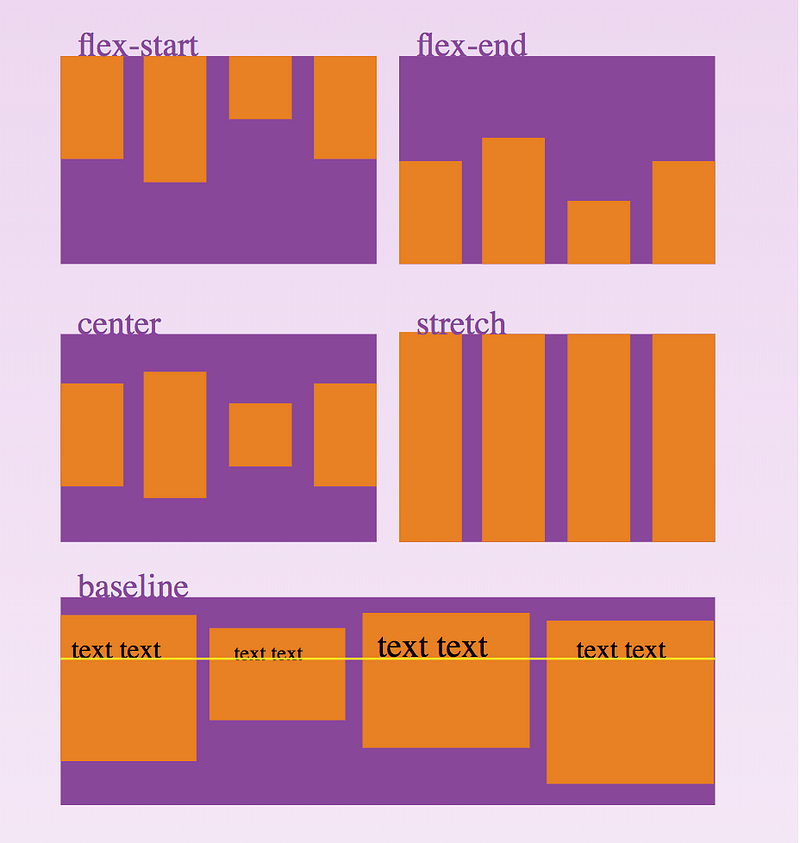
.flex-container{
     display:flex;
     align-items:center;
}
align-content
Let us extend the above example for more elements with the
flex-wrap property set to wrap.
The elements may be of three to four rows but not necessarily cover the
whole browser. In this case, we have different options for positioning
them with flexbox’s align-content property. Let’s have a look at the image below-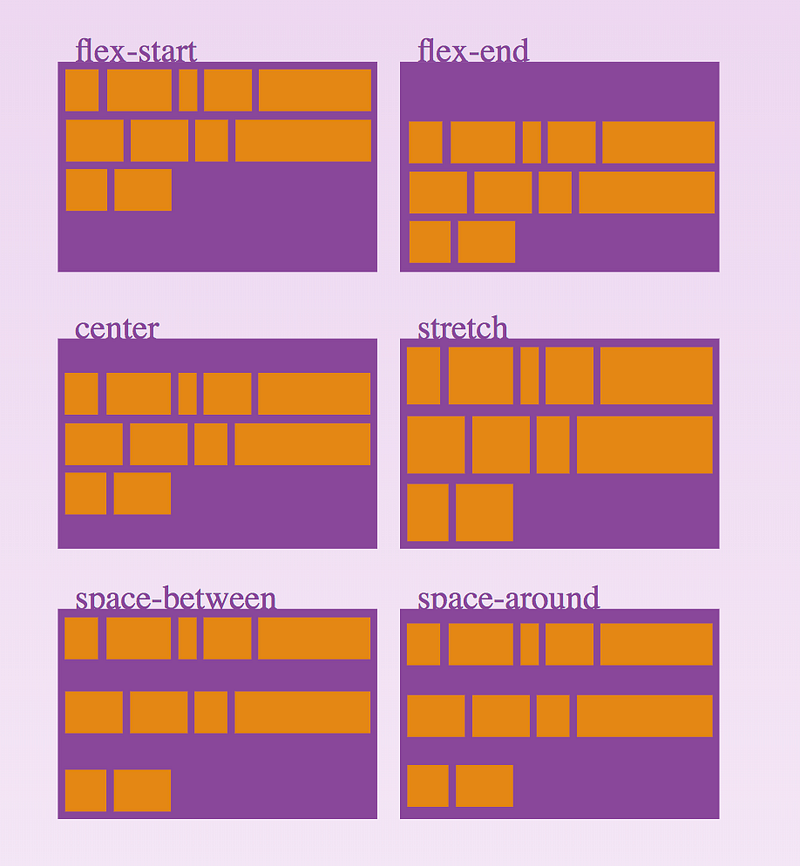
.flex-container{
     display: flex;
     align-content: center;
}
Properties of Items-
order
It determines the order in which the flex-items are laid out. By default, it follows the source order (i.e. the value is
0).<div class="flex-container"> <div style="order: 3">1</div> <div style="order: 2">2</div> <div style="order: 4">3</div> <div style="order: 1">4</div> </div>
The above code places the elements in the following order-

flex-grow
The
The
flex-grow property specifies how much a flex item will grow relative to the rest of the flex items.
If all items have
flex-grow set to 1, the remaining space in the container will be distributed equally to all flex-items. If one of the item has a value of 2, the remaining space would take up twice as much space as the others (or it will try to, at least).<div class="flex-container"> <div style="flex-grow: 1">1</div> <div style="flex-grow: 2">2</div> <div style="flex-grow: 1">1</div></div>
As we can see below, the middle element twice as much space as the first and the third element.

flex-shrinkThis property defines how much a flex-items will shrink relative to the rest of the flex-items. The default value is
1. A value of 0 means that it will retain its original size relative to other flex items.
In the below code let us assume that every div in the container has a
width of 100px and a margin of 10px all in one line. Obviously, for a small browser width, it would shrink to fit. Let us apply a flex-shrink of 0 to the third element so that it retains its original size.<div class="flex-container"> <div>1</div> <div>2</div> <div style="flex-shrink: 0">3</div> <div>4</div> <div>5</div> <div>6</div> <div>7</div> <div>8</div> <div>9</div> <div>10</div> </div>
We can see that the third element has retained its original size relative to other flex items.

flex-basis
This defines the default size of an element before the remaining space is distributed. It can take values in pixels, percentage etc. The default value is
This defines the default size of an element before the remaining space is distributed. It can take values in pixels, percentage etc. The default value is
auto, which takes the size according to the width and height properties. In the example code below, we set the default size of the third element to be 200px.<div class="flex-container"> <div>1</div> <div>2</div> <div style="flex-basis: 200px">3</div> <div>4</div> </div>

flex
This is the shorthand for
This is the shorthand for
flex-grow, flex-shrink and flex-basis combined. The second and third parameters (flex-shrinkand flex-basis) are optional. Default is 0 1 auto. Example usage-<div class="flex-container"> <div>1</div> <div>2</div> <div style="flex: 0 0 200px">3</div> <div>4</div> </div>
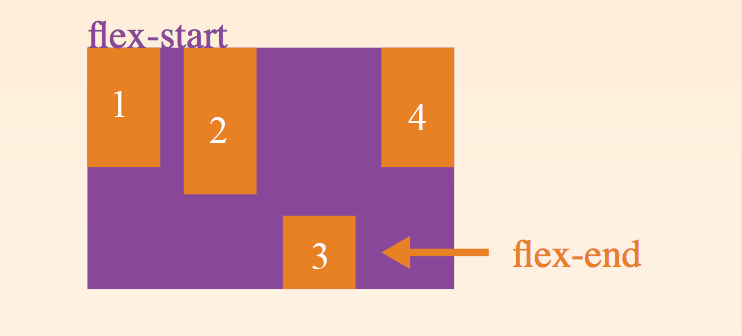
align-self
The
align-self property specifies the alignment for the selected item inside the flexible container. The align-self property overrides the default alignment set by the container's align-items property. Its possible values are same as those of the align-items property. The code below shows how we can override the flex-start property of the third element by applying a flex-end on it.<div class="flex-container">
<div>1</div>
<div>2</div>
<div style="align-self: flex-end">3</div>
<div>4</div>
</div>
There
you go! All the ingredients for a perfect flexbox recipe laid out for
your taking. Time to say bye to bootstrap and say hello to the flexbox
layout!





/cdn.vox-cdn.com/uploads/chorus_image/image/61672975/mswindows2_2040.0.0.jpg)


